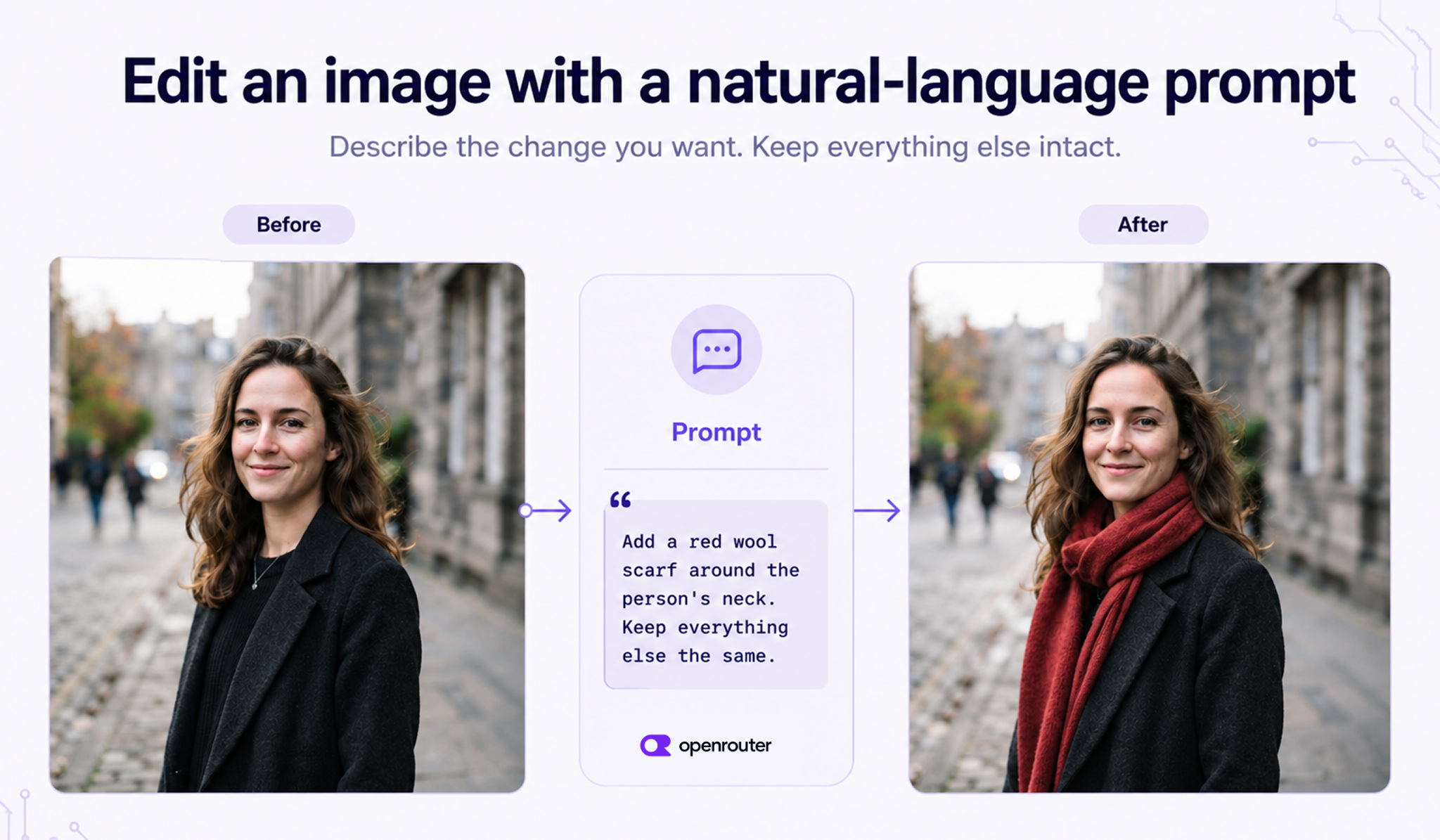
This guide shows how to edit an image with a text prompt in code. You send the source image and an edit prompt to google/gemini-3.1-flash-image through the OpenRouter API, and the edited image comes back in the response. “Nano Banana” is the nickname for Google’s Gemini image models. This slug is Nano Banana 2, the default fast model in that family. Because you reach it through one API:https://openrouter.ai/blog/announcements/image-api, you can use a different editing model later by changing one field.
Image editing changes an existing image. Image generation creates a new image from text. This guide covers editing, so every request here includes a source image. For creating images from text, see the image generation docs:https://openrouter.ai/docs/guides/overview/multimodal/image-generation or the image generation tutorial:https://openrouter.ai/blog/tutorials/image-generation.
The default in this guide is google/gemini-3.1-flash-image , Nano Banana 2. It takes an image as input and returns an edited image. The Nano Banana family has four current members: Nano Banana 2 ( google/gemini-3.1-flash-image ) is the default in this guide, Nano Banana 2 Lite ( google/gemini-3.1-flash-lite-image ) is the cheapest and fastest, Nano Banana Pro ( google/gemini-3-pro-image ) is slower and higher quality, and the original Nano Banana ( google/gemini-2.5-flash-image ) is the older model the nickname started with.
The image catalog changes often. Models are added, deprecated, and repriced, so a slug you pin today may be retired later. Before you build on a model, check that it accepts image input and supports the editing features you need. You can browse the editing-capable models in the image model collection:https://openrouter.ai/collections/image-models. For a walkthrough of the catalog, see image generation models:https://openrouter.ai/blog/tutorials/image-generation-models.
The samples below use the slug shown in each request, so you can run them as written and change the model later. Keep your key in an environment variable, not in your code:
To edit an image, send the source image and a text instruction in a single request. The edited image comes back in the response. Here is a working request in Python that encodes a local file:
The request body is the same in both languages. Put the reference image in input_references and the instruction in prompt . That is the whole request.
The input_references field takes either a base64 data URL or an HTTP(S) URL. The examples above encode a local file. If your image is already hosted publicly, pass the link directly and skip the encoding:
Use a URL when the image is public and hosted, because it keeps the request body small. Use base64 for local or private files. Gemini accepts image/png , image/jpeg , image/webp , image/heic , and image/heif inputs. Supported formats vary by model, so check the model page before you send.
The API returns the edited image as base64 data in the data array. Decode the b64_json value and write it to a file:
Open edited.png to see the result. If you want a typed client instead of raw HTTP, the OpenRouter SDK has an images resource that calls the same endpoint:
Install the SDK with pip install openrouter . It reuses the api_key defined earlier, so no extra setup is needed.
A generation prompt describes a whole new image. An edit prompt says what to change and what to leave alone. State the change first, then name what must stay the same:
You can also write the prompt as a small block of JSON text:
The API treats this as plain text, so it is not a special mode. The structure can help the model separate what changes from what stays. Try both the sentence form and the JSON form on your own images and keep whichever works better.
One edit will not always give you what you want. To run another pass, send the returned image back in as the next source. Take the b64_json value from the response, turn it into a data URL, and pass it in the next input_references :
Each call edits the last result, so earlier changes carry forward. Give one instruction per call. Small edits are easier to check and easier to redo when they come back wrong. The model does not remember your earlier prompts, so repeat the parts it should leave alone in each new prompt.
To send the same edit request to a different model, change the model field. The source image, the prompt, and the response-handling code stay the same:
Use google/gemini-3.1-flash-image as a fast default. Use google/gemini-3.1-flash-lite-image when you want the lowest price. Use google/gemini-3-pro-image when you want higher quality and can accept more latency. The original google/gemini-2.5-flash-image still works with the same request shape, but the newer models above are the better default. Use a model from another provider, such as openai/gpt-5-image , when you want to compare quality, cost, or speed:https://openrouter.ai/blog/announcements/image-benchmarks on your own images. This one-field change only works for models that accept image input and support the same input_references shape, so check that a model is editing-capable before you switch to it.
To set a model and its options per environment instead of in code, use OpenRouter Presets:https://openrouter.ai/docs/guides/features/presets.
These failures are common enough to plan for:
The response reports the cost of each request in USD when usage data is available. Log it to track spend:
For batch jobs, stay within rate limits:https://openrouter.ai/docs/api_reference/limits. Retry 429 and 5xx responses with growing delays between tries, and limit how many edits run at once. Save each returned image before starting its next edit, so one failure does not lose finished work.
Copy the first request, use your own image, and run an edit. To create images from text instead, see the image generation docs:https://openrouter.ai/docs/guides/overview/multimodal/image-generation. To find current editing-capable models, browse the image model collection:https://openrouter.ai/collections/image-models.
Yes. Send the source image and a text instruction in one request to google/gemini-3.1-flash-image through the OpenRouter API, and the edited image comes back as base64 in the response. That model is Nano Banana 2. The full request fits on one screen, and you can run it in Python, TypeScript, or curl.
Image editing changes an existing image. Image generation creates a new image from text. Every editing request includes a source image in input_references and an instruction that says what to change and what to keep. If your request has no source image and works from a text prompt alone, that is generation.
The input_references field takes a base64 data URL for a local or private file, or a plain HTTP(S) URL for a public hosted image. Use the URL form to keep the request small when the image is already online, and the base64 form when the file is on your machine. Gemini accepts png, jpeg, webp, heic, and heif inputs ( image/png , image/jpeg , image/webp , image/heic , image/heif ). Supported formats vary by model, so check the model page before you send.
Yes. Change the model field and keep the rest of the request the same. Check the image model collection:https://openrouter.ai/collections/image-models first, because editing support, price, and speed vary by model.
Describe the change first, then name what to preserve, for example “Change the background to a snowy street at night. Keep the subject exactly as is.” One instruction per request works best. For precise results, edit in small steps and send each returned image back in as the source for the next prompt.
 Scan to open this article