Manually checking competitor prices gets tedious when you're tracking products across several stores. With Python, you can automate this process easily.
In this article, we'll build a competitor price tracker with Browser Use:https://browser-use.com/web-agents and SQLAlchemy:https://www.sqlalchemy.org/. We'll collect prices from three stores, keep a history in a SQLite:https://www.sqlite.org/ database, generate price-change alerts, and run the tracker on a schedule.
Price scraping is the automated collection of product prices from websites. A price scraper opens a product page, extracts the relevant offer, and returns data your program can store or compare. For competitor price scraping, the goal is to collect comparable offers for the same product across different stores.
The displayed price needs context. A sale price, monthly installment, and members-only offer can all appear on the same page. Before collecting anything, decide which offer you want and use that definition consistently.
Price scraping collects a snapshot. Price monitoring repeats the collection and compares observations over time. For example, a scraper can tell you what a store charges now; a tracker can tell you whether that price changed since its previous successful check.
Web scraping for price monitoring therefore needs storage, comparison rules, and a schedule. Keep a separate history for each store listing. If a check fails or returns no price, skip the comparison instead of treating the missing value as zero.
Start with an available product API if it provides the offer details you need. If the price is already in the returned HTML, an HTTP request and an HTML parser may be sufficient. Our Python web scraping guide:/posts/fetch-use covers fetching page content.
A browser becomes useful when you need to interact with the page, such as selecting a variant or shipping location. You can write those steps with a tool such as Playwright, or give a browser agent a task and let it determine the interactions. The agent approach still needs clear instructions and checks on the returned data; it also adds model usage to the collection cost.
Match the product model, variant, condition, and quantity before comparing prices. Keep the seller, currency, delivery region, and how you handle shipping or discounts consistent, too. A lower price for a different bundle doesn't establish that the same product became cheaper.
In this tutorial, we'll use one LEGO set across three retailers and ask for each retailer's public USD item price. We'll compare each listing with its own previous observation and print changes. Email and webhook delivery are possible extensions.
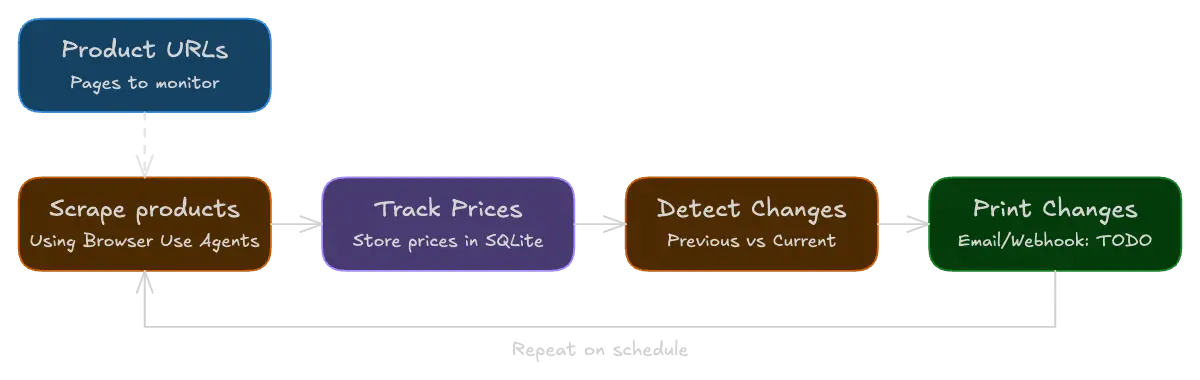
The tracker takes a list of products and their store URLs. It then repeats four steps on a schedule:
Each scheduled run rechecks the same listings, adds fresh observations, and looks for new changes.
To follow along, you'll need a Browser Use API key:https://cloud.browser-use.com/settings?new=1&tab=api-keys (eligible signups receive $1 in free credits:https://browser-use.com/pricing).
Start by creating a new directory and a virtual environment:
Next, create requirements.txt with the following contents:
The packages have the following functions:
Moving along, create an .env file and paste in your Browser Use API key:
First, create a main.py file and add the database model and setup function:
Here, we use SQLAlchemy's ORM:https://docs.sqlalchemy.org/en/21/orm/quickstart.html to define a ProductObservation table with three fields:
init_db() creates the table if it doesn't exist. We keep the database beside main.py so manual and scheduled runs use the same file.
You should now see a prices.sqlite3 file in your project directory. Next, let's implement scraping.
For our competitor price scraping example, we'll track LEGO set 77251 at LEGO, Target, and Best Buy.
Add the following imports at the top of main.py :
Below the engine definition, add the three URLs:
Each name identifies a product at a particular store. Keep these names the same between runs so we can look up previous prices. To track a different product, update the URLs and the scraping prompt below.
A browser agent:/posts/web-scraping-guide-2026 can interact with product pages, including choosing a shipping location when required. We'll use Browser Use to read each price and Pydantic to validate the response.
Below init_db() , add the following model and scrape() function. Keep the if __name__ block at the bottom of the file:
The function asks Browser Use to open the URL and return the public USD price for one new set. The prompt excludes shipping, tax, and member prices so we compare the same type of offer across stores.
Pydantic checks the response format. Check the returned prices against the store pages before relying on them.
Below scrape() , add a function that saves one observation:
Each call adds a row to SQLite, keeping earlier observations intact.
To put everything together, replace the final if __name__ block with the following:
Here, we load the API key, initialize the database, and loop through the products. Each returned price is saved with its listing name. Failed checks and missing prices are skipped.
This uses Browser Use account credits. Each successful check prints the listing name and saved price. Open prices.sqlite3 in a SQLite viewer to see the stored observations.
With prices stored, let's compare each new price with the previous one for that listing.
First, add select to the SQLAlchemy import in main.py :
Then replace save_observation() with the following:
We retrieve the latest observation for the same listing by sorting its rows by descending ID. After saving the new price, the function:
Every check with a valid price adds a row, even when the price stays the same. The TODO marks where you can add email or webhook notifications.
For example, here's how four checks would behave with illustrative prices:
Run python main.py again to compare prices with the rows saved earlier. Each store is compared with its own previous price, and any increase or decrease produces a message.
Finally, let's automate the price checks with a daily schedule. Keep prices.sqlite3 between runs so the tracker retains its history.
On a Linux machine, cron:https://man7.org/linux/man-pages/man5/crontab.5.html can run the script daily. Open your crontab:
For a project installed at /opt/price-tracker , add this as one line:
Replace /opt/price-tracker with your project's path. This job:
Keep the machine running and check cron.log after the first scheduled run. Adjust the frequency to suit your needs and account usage, allowing each run to finish before the next starts.
In this article, we used Browser Use to collect prices from three stores, saved them in SQLite with SQLAlchemy, and printed price changes. We also added a daily schedule with cron.
You can find the complete source here:https://github.com/duplxey/browser-use-price-scraping. To extend the tracker, try adding your own products or sending price changes by email or webhook.
Curious how to automate job applications with Python? Check out our step-by-step tutorial:/posts/automate-job-applications-with-python.

Our fastest browser agent is now on every Browser Use Cloud plan in the US, free plan included. The median task takes 22 seconds.

Compare Browser Use and Browserless on pricing, stealth, and performance. Find the right browser infrastructure for your automation workflows.

100 long tasks on the live web, from Carnegie Mellon University and Browser Use. The best agent fully completes 47 of 100.
 Scan to open this article